Google Photos
App preview
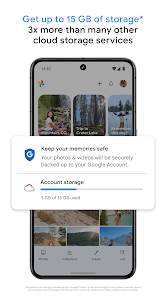
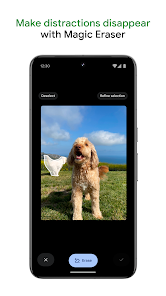
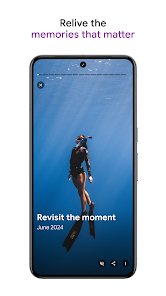
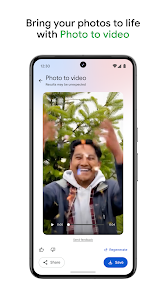
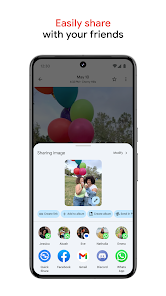
Images supplied with this app listing.
Google Photos is an Android gallery, backup, search, and editing app. Google's current Play listing describes automatic backup, natural-language search, photo stacks, albums, Magic Eraser, Unblur, Portrait Light, and sharing. It also notes that a Google account includes 15 GB of storage shared with Gmail and Google Drive. That distinction matters: turning on photo and video backup can use the same quota needed for mail and files. Photos is free to install, but storage upgrades and feature availability should be checked in the live app.
Decide what should be backed up
Backup can put memories from a phone alongside those from other devices and galleries, making them easier to access later. Before enabling it, review which folders are included and whether your current connection and quota are suitable for a large upload. A camera roll may contain screenshots, duplicates, temporary downloads, and videos that take much more space than a still photo. Automatically backing up everything is convenient, but it is not the same as deciding what is worth keeping long term.
Google's listing calls out a “Free up space” option. Treat any cleanup tool as a decision that deserves a quick review: check that important photos have completed backup and understand what will remain available on the device afterward. We are not asserting that every file has been safely copied merely because an app offers a cleanup button. If a photo is irreplaceable, consider your own backup policy beyond a single service.
Find an image without remembering its filename
The app's search can respond to descriptive queries such as people, activities, or places, according to Google. That makes Photos different from a simple folder browser. Photo stacks group similar images, and the app also offers organization for screenshots, documents, albums, and the daily camera roll. These features are useful when you have years of images, but search results still need human review before you rely on a result for an important document or memory.
A practical routine is to create a few meaningful albums for events or projects, then use search to locate individual moments. Do not spend a weekend manually labeling every image if the goal is simply to find a family trip. Conversely, do not let automatic grouping replace a clear album when other people need to understand a shared set of photos.
Editing tools have different purposes
Magic Eraser aims to remove a distracting object, Unblur addresses some soft images, and Portrait Light changes the lighting of a portrait. None can recover a moment that was never captured, and results depend on the source photo. Make edits with an eye to the intended use: a personal memory can tolerate a creative adjustment, while a documentary or professional image may need its original preserved. Google Photos is a good place for quick correction and organization; Canva is more design-oriented when the output needs text, layout, or a presentation.
The Play listing also describes sharing photos, videos, and albums with contacts who may not use Google Photos. Before sharing, inspect the selected album and its audience. A broad album link may include images you did not intend to distribute. The app mentions a Locked Folder protected by a device screen lock for sensitive items; check the live help documentation for its current backup and access behavior instead of assuming it works exactly like a normal album.
The shared quota and connected tools
The free 15 GB allocation belongs to the Google account, not to Photos alone. Google Drive documents and Gmail messages share it. If you are close to the limit, identify what is taking space before paying for an upgrade or deleting memories. Google One may provide more storage, but its regional plans and terms can change. Verify current prices in the official service, not an old article.
Who benefits most?
Google Photos is valuable if you want one searchable place for personal images across devices, light edits, and controlled sharing. It is less compelling if you want no cloud synchronization at all or need a highly specialized professional photo workflow. A careful first session is to inspect backup settings, confirm account storage, upload a small set, test search, and check one share. That tells you how the system handles your own images before committing an entire archive.
This guide uses Google's published Android feature list. We have not tested backup completion on your device or certified any privacy setting; the current Play listing and Google's help pages remain the source for compatibility, permissions, and changing service terms.
One final distinction helps prevent mistakes: an organized gallery is not automatically a complete archive. Search and stacks help you find items that are present; they do not prove that every older photo was transferred from a previous phone. When changing devices, compare a few important dates and albums on both sides before removing the old copy.
Official source: Google Photos on Google Play.