Google Translate
App preview
Images supplied with this app listing.
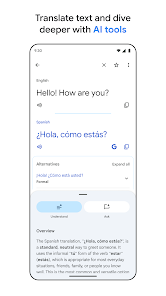
Google Translate is an Android translation tool for text, images, speech, and short saved phrases. Its official Google Play listing describes typed translation, Tap to Translate from other apps, camera and imported-photo translation, bilingual conversations, handwriting, offline language downloads, and a phrasebook that can sync across devices when signed in. It is free to download on the current store page. The important limitation is that these input methods do not support identical language sets or work equally well in every situation.
Choose the input method that matches the problem
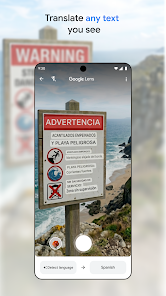
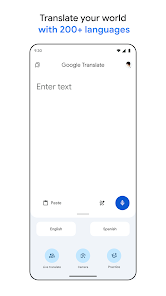
Typing is suitable for a sentence you can copy or enter accurately. Tap to Translate is intended for text copied inside another app, saving the step of switching screens. The camera can help with a sign or menu when retyping is inconvenient, while importing a photo gives you another route for text already captured. Handwriting is useful for characters you can recognize visually but cannot enter with your keyboard. Google's listing gives different supported-language counts for these modes, so check the specific pair you need rather than assuming that “Translate supports this language” means every method does.
Start with a clean source when accuracy matters. A sharp photo, legible handwriting, or a sentence with enough context gives the app a better chance than a cropped fragment. If the result could affect a medical, legal, or financial decision, treat machine translation as a first pass and seek a qualified human review. This is a caution about the use of automated language tools, not a claim that we benchmarked Google's accuracy for a particular pair.
Conversations and transcribing are not the same task
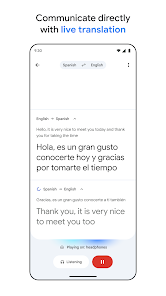
Conversation mode is described as translating a bilingual exchange on the fly. That can be useful for two people speaking in turns. Transcribe is described as continuously translating someone speaking another language in near real time, with a smaller supported-language set. A group meeting, a noisy street, or overlapping speakers can make either workflow harder. Ask participants to speak clearly and confirm important details such as names, numbers, and addresses before acting on the output.
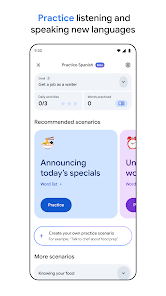
For travel, prepare a few essential phrases before you need them. The Phrasebook lets you star and save translations, and Google says signing in can sync those saved phrases with desktop. Save a hotel address or a question you know you will ask; do not rely on remembering a live translation later. If your goal is to study and retain a language rather than solve an immediate communication problem, Duolingo serves a different learning purpose.
Plan for offline use before leaving a connection
The Play listing names offline translation for a subset of languages. That does not mean all languages or every camera, speech, and conversation function will work offline. Download the relevant language data ahead of a trip and test a simple phrase while disconnected. This small check is more reliable than assuming a feature will be ready in a place with no signal. For navigation in the same trip, Google Maps is a companion tool, but a map and a translator solve different problems.
Because language support changes, an exact number copied into an evergreen article can become misleading. Google's current store description lists separate counts for typed, offline, camera, handwriting, conversation, and transcribe features. Use the live app's language picker for the pair and mode you actually need. Also remember that regional variants, idioms, and proper names may not be handled in the way a local speaker would choose.
A practical translation workflow
First identify whether you need to understand incoming text, produce a message, or hold a conversation. Choose typed or copied text when possible because you can review the exact source. Use camera or photo input when retyping is difficult, then verify that the app recognized the text correctly before trusting the translation. For a live conversation, repeat the translated meaning back when a misunderstanding would matter. Save recurring phrases and check any critical output with another source or a person.
Google Translate is especially useful for everyday reading and travel situations where speed and convenience matter. It is not a substitute for a professional interpreter when precision is essential. The current Play page should be checked for compatibility, permissions, language availability, and any regional changes. We have not measured accuracy or offline performance on a specific phone; this article explains the official feature set and how to use it cautiously.
When translating private material, consider whether you are comfortable entering it into a connected service or granting camera and microphone access for that task. The exact handling depends on Google's current policies and settings, which should be reviewed directly. You can often shorten a request to the necessary sentence rather than translating an entire sensitive document. For public signs and everyday phrases, the convenience trade-off may be very different.
Official source: Google Translate on Google Play.