Google Calendar
App preview
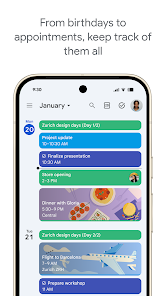
Images supplied with this app listing.
Google Calendar for Android is a scheduling app that combines events, multiple calendar views, shared calendars, and tasks. The official Play listing covers phones, tablets, and Wear OS, with synchronization across devices when you use the same Google account. Its most useful feature is not a particular color or widget: it is the ability to keep a meeting, a personal commitment, and a task visible without treating all three as the same kind of obligation. Account, sharing, and notification settings determine whether that plan stays trustworthy.
Events and tasks have different jobs
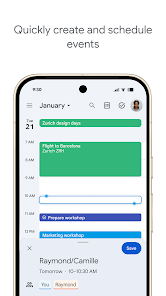
Create an event when time and attendance matter: a meeting, a reservation, or an appointment. Add a location or meeting link and invite the people who need to attend. Use a task for work that must be completed but may not require another person to reserve that exact hour. Google says tasks can be created and managed beside events and in a full-screen task view. If every minor errand becomes a calendar event, the day view can look busy while hiding the few commitments you cannot move.
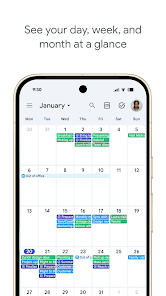
A useful weekly review is to scan fixed events first, then place flexible tasks around them. Give a task a clear verb and enough context to act on it later. “Prepare slides for Thursday review” is more actionable than “slides.” Check the week view for overloaded days and the day view for execution. Month view is better for broad conflicts and recurring commitments than for reading a crowded agenda in detail.
One screen for several calendars
The listing says Google Calendar can display other calendars on the device side by side, including Exchange, and supports shared calendars where other people may view, add, or modify events. Keeping separate personal and work calendars can protect context while still showing collisions. Color-coding makes the distinction visible, but color alone is not an access rule: review who can see each calendar and what details they can read. A private medical appointment should not become visible to a broad team simply because it has a personal color.
For a family or small project, agree who may edit the shared calendar and how changes are communicated. Otherwise one member may move an event without another noticing. Attach useful documents or pre-read material to a work meeting when your account supports it, so participants know where the agenda lives. If you use Google Drive for shared files, check the file's permissions separately from the calendar invitation; an invite does not automatically make every linked document readable.
Automatic events from Gmail: convenient, but review them
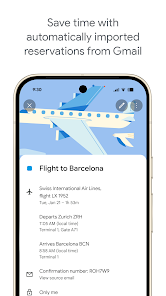
Google's store page says flight, hotel, concert, and restaurant reservations can be added from Gmail. This is convenient for travel planning because confirmation details appear near the relevant time. It is still worth comparing an automatically created entry with the actual email, especially for time zones, cancellations, or a changed reservation. If a booking is sensitive or you do not want this behavior, inspect the current Gmail and Calendar settings for how events are created and shown.
When traveling, check which time zone an event uses before departure and again at the destination. A flight departure and an online meeting can be displayed differently depending on the calendar's settings. Put the confirmation number and official source where you can find them, but avoid copying sensitive details into a calendar that many colleagues can read. For travel logistics, Google Maps may help with the route; Calendar remains the schedule rather than the navigation tool.
Meetings, booking, and Workspace features
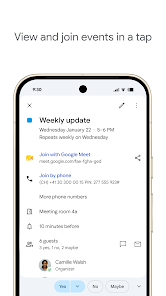
The Play listing describes adding Google Meet calls to events, comparing teammate availability, and layering calendars for scheduling. It also mentions professional booking pages and working-location features with account-dependent availability. These can be valuable for a team but should not be assumed to exist in every free personal account. Before promising clients a booking link, confirm the feature in your actual Google Workspace plan and test the invitation from a guest's perspective.
A meeting invite should say why the meeting exists and what decision is needed. If the answer could be collected in a document instead, a shared note may save several people's time. When a call is necessary, include the correct video link, time zone, and agenda. Afterward, update the event or linked notes with the outcome rather than leaving participants to search through chat. Calendar organizes a collaboration; it does not supply a clear purpose on its own.
Make reminders work across devices
Calendar's widgets, month/week/day views, color modes, and Wear OS tiles or complications give several ways to glance at the day. Choose the smallest view that answers the immediate question. A watch glance might show the next event; the phone's week view can reveal whether there is enough travel time between appointments. Review notification settings so a critical departure reminder is not buried under alerts for low-priority shared events.
Google Calendar fits people who already use a Google account and want events and tasks in one mobile view. If you need strict separation between employer and personal data, verify your organization's policies before combining accounts on the same device. The current official listing is the source for supported platforms and features; synchronization, permissions, and paid Workspace capabilities should be checked in the account you actually use.
Official source: Google Calendar on Google Play.
App information
- Title
- Google Calendar
- Category
- Productivity
- Platform
- Android
- Download
- Open link